
Где живут подключения
Откройте Настройки → Подключения. На дашборде подключений видны все активные интеграции, включённые у каждой уведомления и кнопка добавления новых.
Дневник можно связать с двумя сервисами: Telegram (личный аккаунт, приватные группы или публичные каналы) и Discord (приватные или публичные серверы). Других типов подключений сегодня нет.
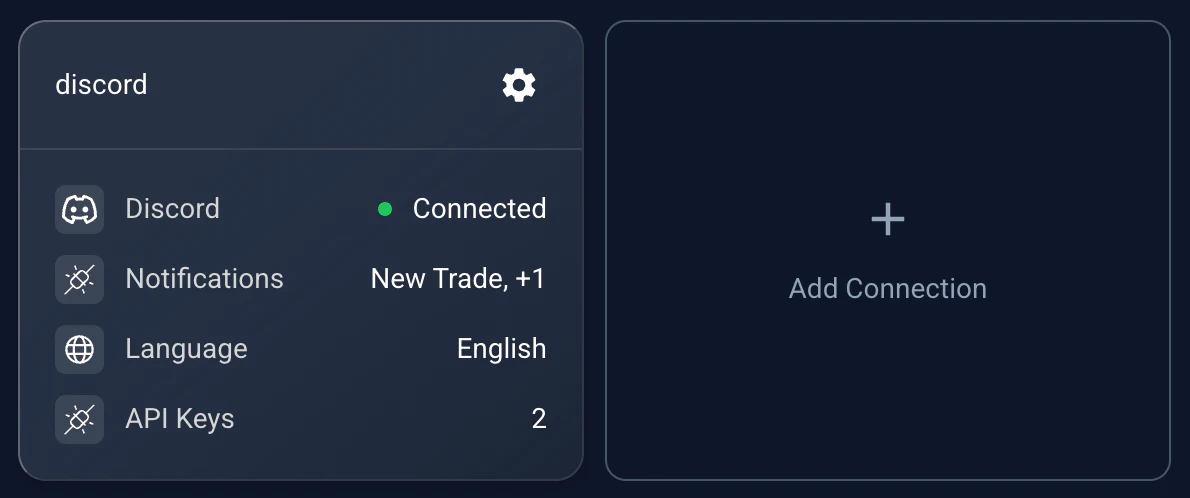
Дашборд подключений: активные интеграции и включённые у них уведомления.
Settings → Connections, /app2/settings?tab=connections. Reused from _media/connections (Mar 2026 rewrite set); labels match current UI.
Шаг 1 — выберите сервис
Начните новое подключение и выберите Telegram или Discord. Дальше настройка устроена одинаково для обоих; отличается только последний шаг привязки.
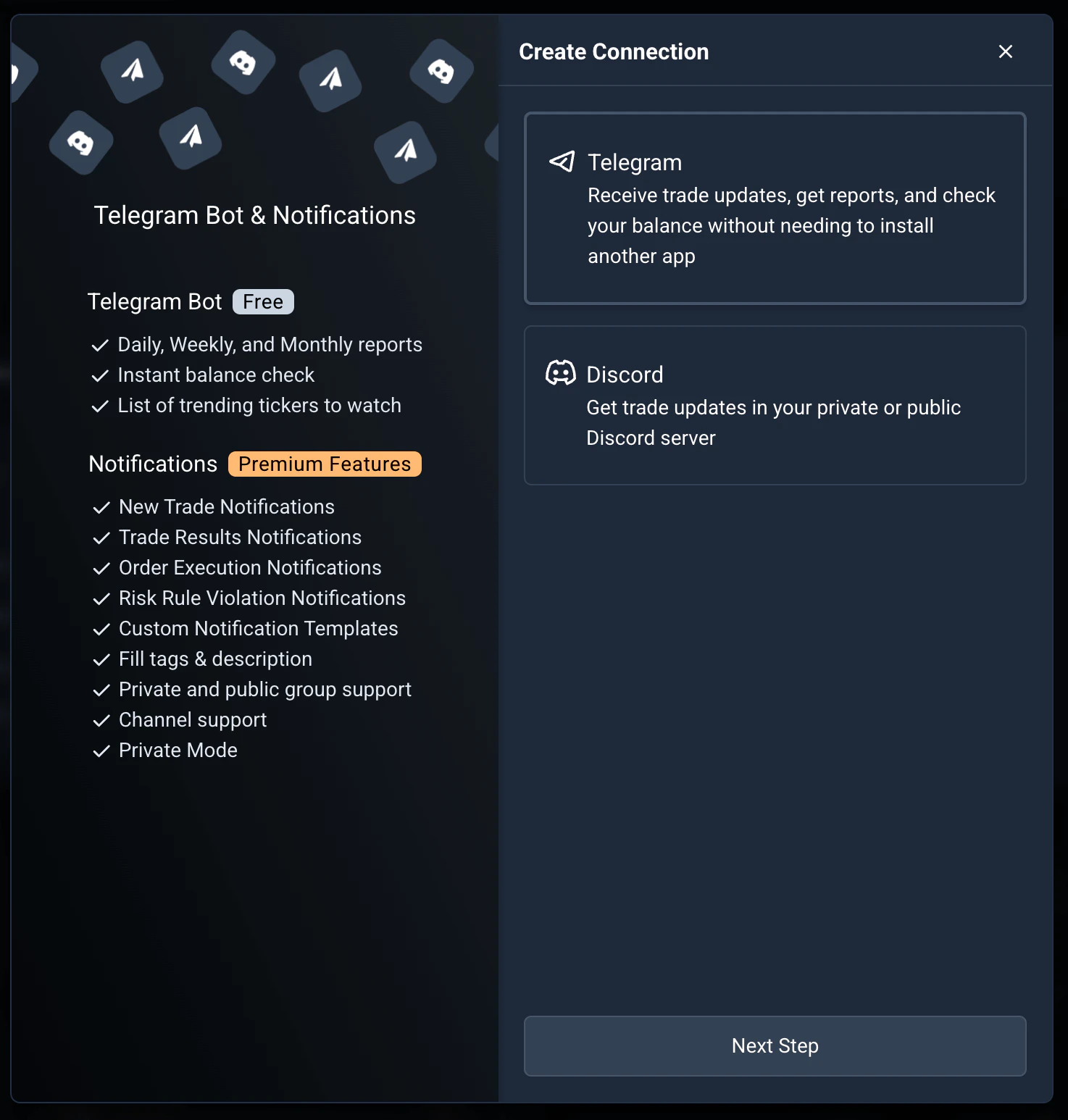
Шаг 1: выберите сервис — Telegram или Discord.
New-connection wizard, service select. Reused from _media/connections/step1 (Mar 2026).
Шаг 2 — назовите подключение и выберите типы уведомлений
Дайте подключению понятное имя (например, «Основной личный Telegram» или «Discord трейдинг-группы»). Затем выберите, какие уведомления оно будет слать:
- •Открыта новая сделка — мгновенное уведомление в момент открытия позиции.
- •Результаты сделок — сводка прибыли/убытка при закрытии сделки.
- •Выполнение ордера — лог каждого ордера на покупку и продажу.
- •Нарушение риск-правила — уведомление в реальном времени, когда достигнут лимит из раздела Управление риском.
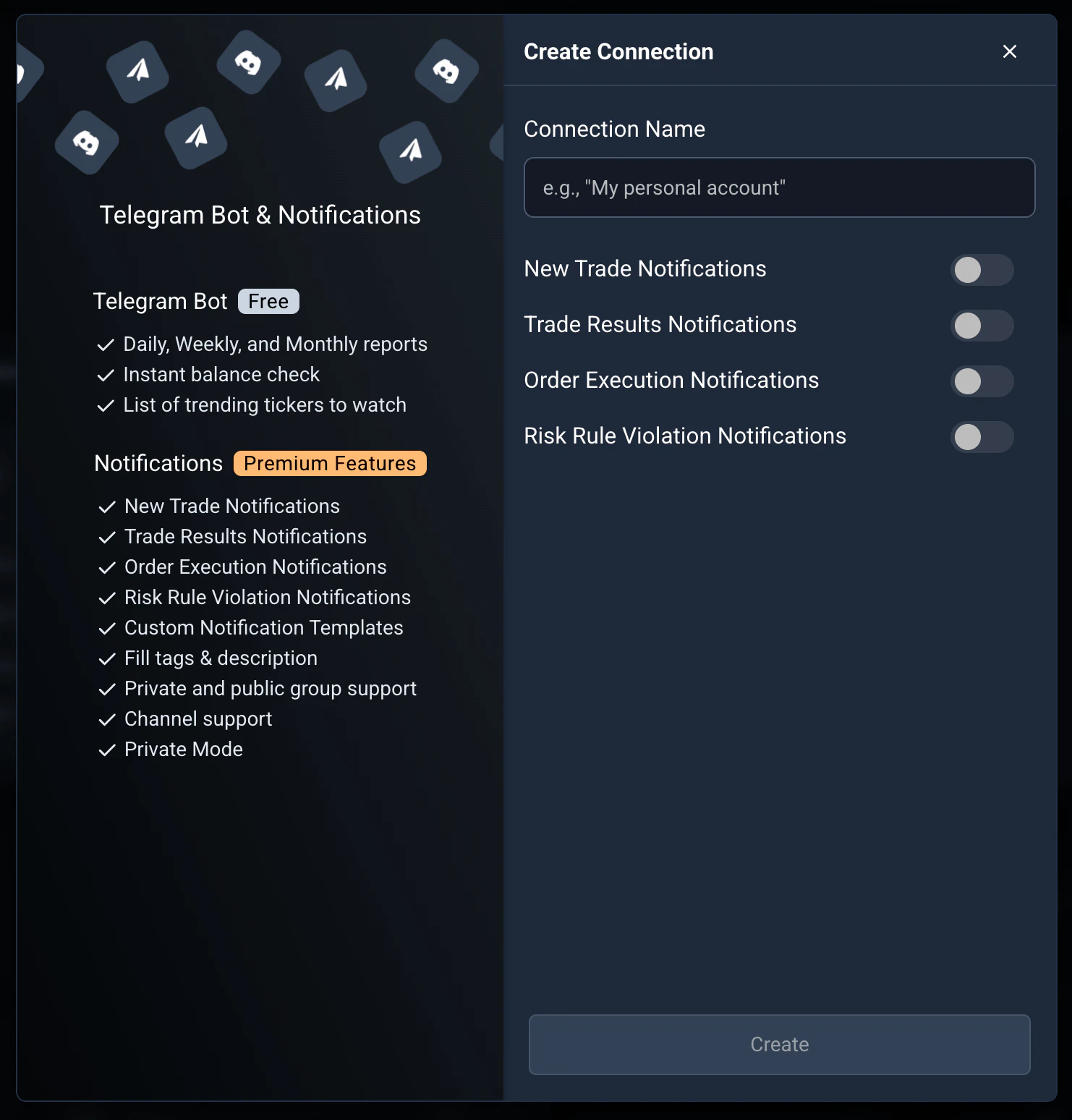
Шаг 2: назовите подключение и выберите, какие уведомления оно шлёт.
New-connection wizard, basic config. Reused from _media/connections/step2 (Mar 2026).
Шаг 3 — ограничьте данные
Точно настройте, что это подключение видит и отправляет:
- •API-ключи — выберите, какие счета вызывают уведомления для этого подключения.
- •Язык — задайте язык сообщений.
- •Режим конфиденциальности — скрывает конкретные числовые значения (например, точную прибыль в $), что удобно для публичных каналов и когда вы делитесь результатами.
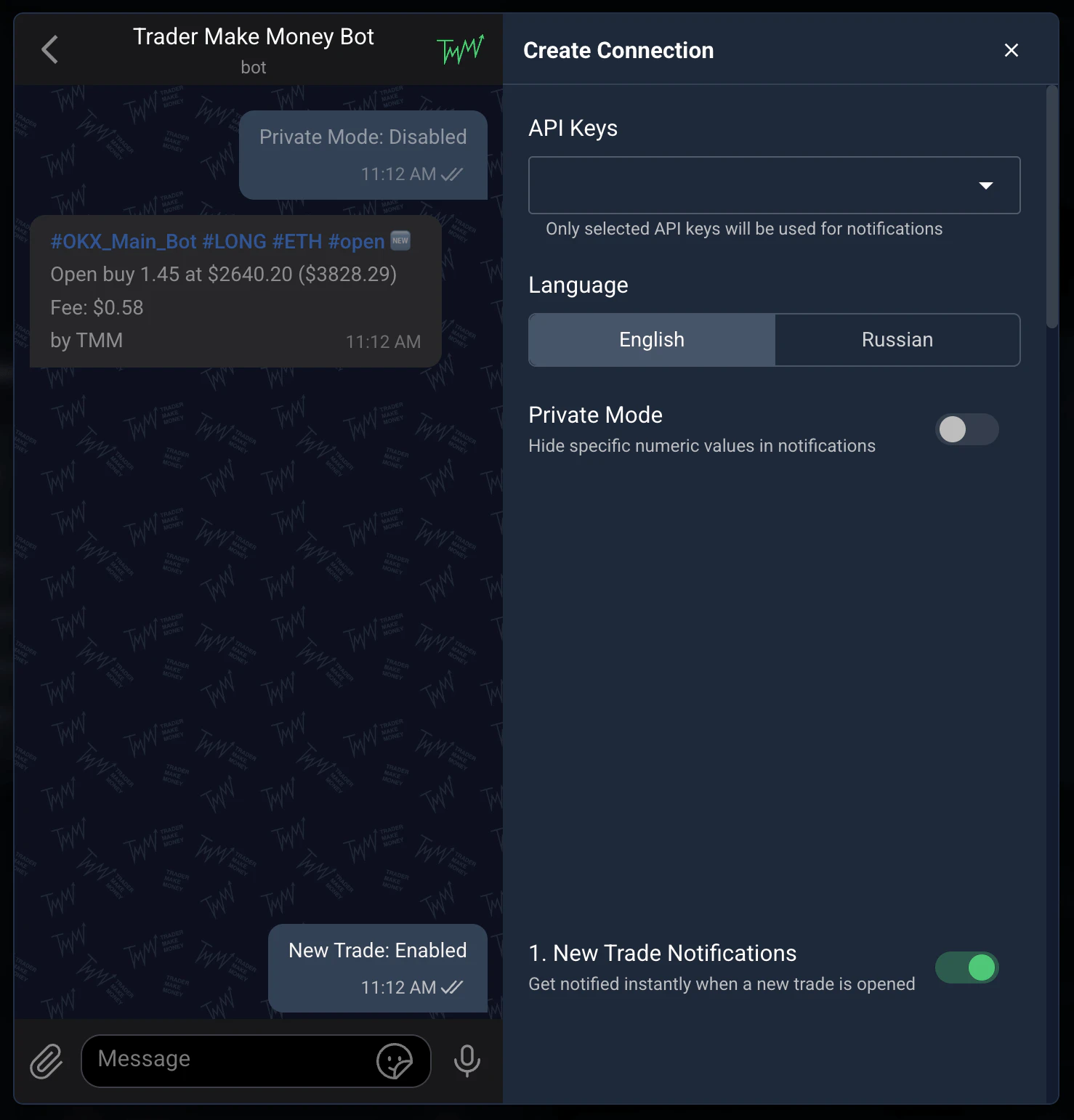
Шаг 3: ограничьте подключение API-ключами, языком и режимом конфиденциальности.
New-connection wizard, granular settings. Reused from _media/connections/step3 (Mar 2026).
Завершение подключения Telegram
После нажатия Добавить подключение приложение показывает точные шаги привязки. Для личного чата: нажмите Установить соединение, перейдите в Telegram и нажмите Start, чтобы привязать аккаунт.
Для группы или канала: добавьте @TraderMakeMoneyBot как администратора, скопируйте уникальную команду /start из инструкции и отправьте её в группу.
Важный нюанс: отправить это сообщение нужно от личного аккаунта. Если в Telegram включён режим «Анонимный администратор» или «Писать от имени канала», подключение не сработает.
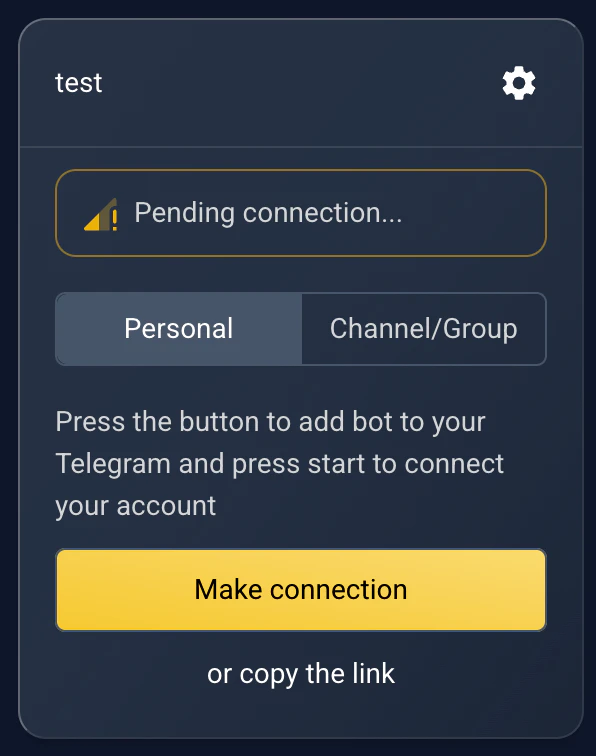
Завершение подключения личного Telegram.
Telegram personal connect flow. Reused from _media/connections/telegram_connect_personal (Mar 2026).
Завершение подключения Discord
Для Discord вы должны быть создателем сервера. Нажмите Установить соединение, разрешите боту войти на ваш сервер, скопируйте уникальную команду /tmm-start и отправьте её в канал, где хотите получать уведомления.
Бот отвечает скрытым подтверждением, которое видите только вы, — остальные участники не увидят ни вашу команду, ни сам факт подключения.
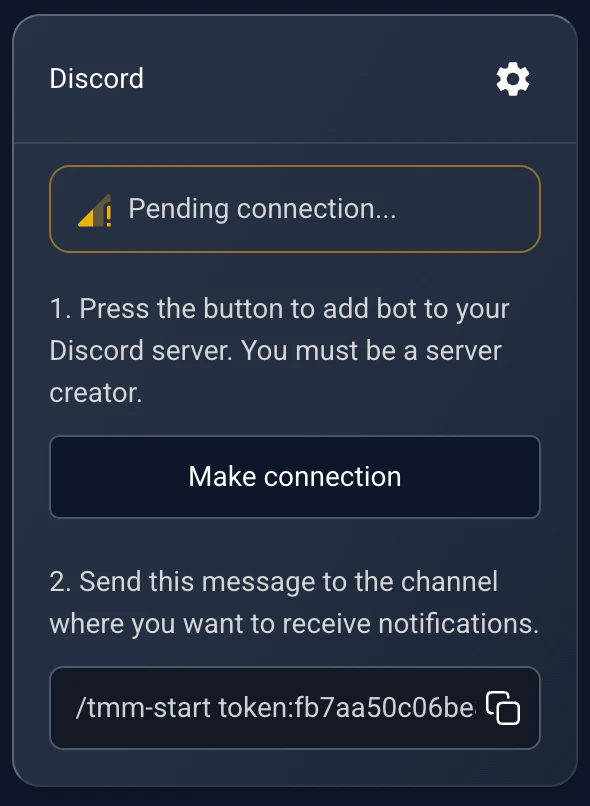
Завершение подключения Discord командой /tmm-start.
Discord connect flow. Reused from _media/connections/discord_connect (Mar 2026).
Собственные шаблоны уведомлений
Для каждого типа уведомления можно включить визуальное превью сделки (скриншот графика с точками входа и выхода) и перейти с шаблона по умолчанию на полностью собственный.
Движок шаблонов работает на токенах, которые подставляются реальными данными сделки. Вы можете менять порядок информации, добавлять эмодзи и подтягивать поля вроде {{apikey}}, {{side}}, {{ticker}}, {{symbol}}, {{profit}}, {{percent}}, {{fee}}, {{leverage}} и другие.
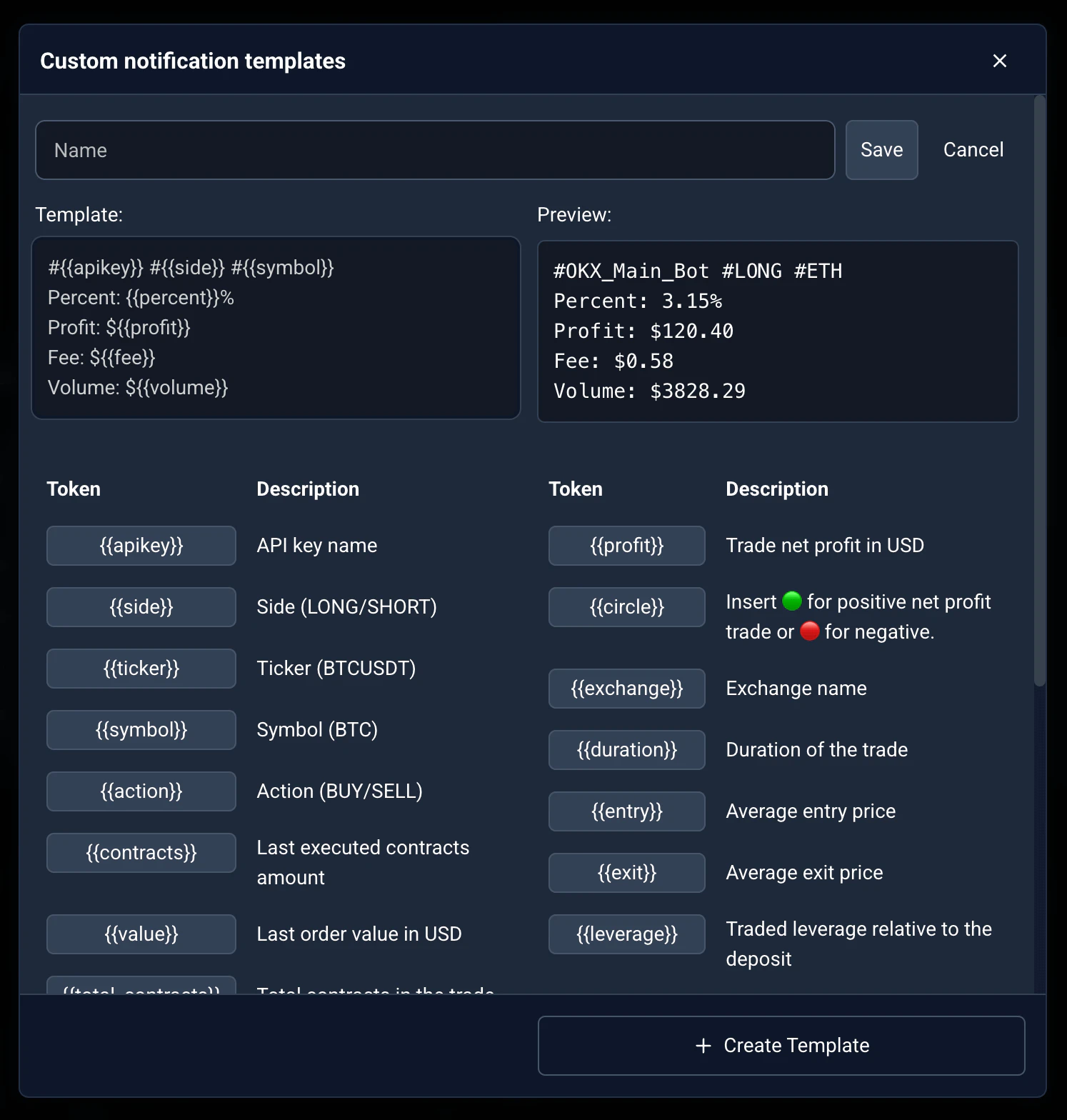
Редактор шаблонов: токены вроде {{apikey}} и {{profit}} подставляются реальными данными сделки.
Notification template editor, TemplateElement.vue token palette. Reused from _media/connections/new-custom-template (Mar 2026).