
Connect Claude to your trading journal
Claude can read your own TMM journal — your trades, PnL, win rate, tags and diary — once you add TMM as a custom connector. It takes about three minutes, there is no token to copy, and the connection is read-only.
The answers above are examples and the numbers in them are invented. Yours are read live from your own trades every time you ask.
Once it is connected you just ask. Claude decides which tool to call and reads the real numbers out of your journal — no screenshots, no copy-paste.
Claude keeps custom connectors in its settings, so there is no developer switch to find first. You paste one address, press Connect, sign in to TMM, and choose how freely Claude may use the tools. Every screenshot below is the real screen you will see.
Four steps, about three minutes
- 1
Open Connectors and add a custom one
In Claude's settings open Connectors, press Add, and choose Add custom connector. This is the same place your other connectors live.
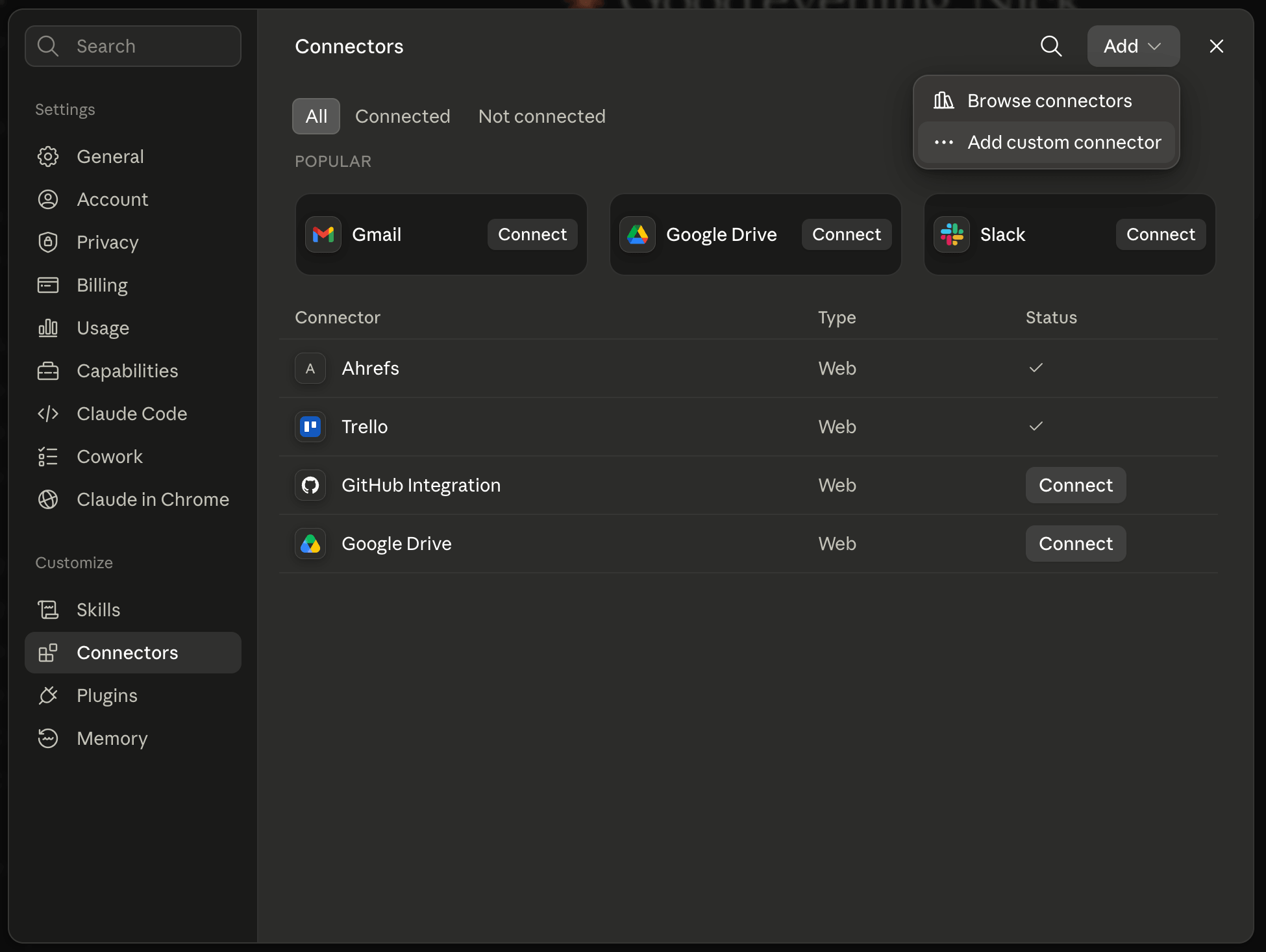
Settings → Connectors → Add → Add custom connector. - 2
Name it and paste the address
Call it TMM and paste the TMM address underneath. If you open Advanced settings you will see OAuth Client ID and Secret — leave both empty, they are optional and TMM does not need them. Press Add.
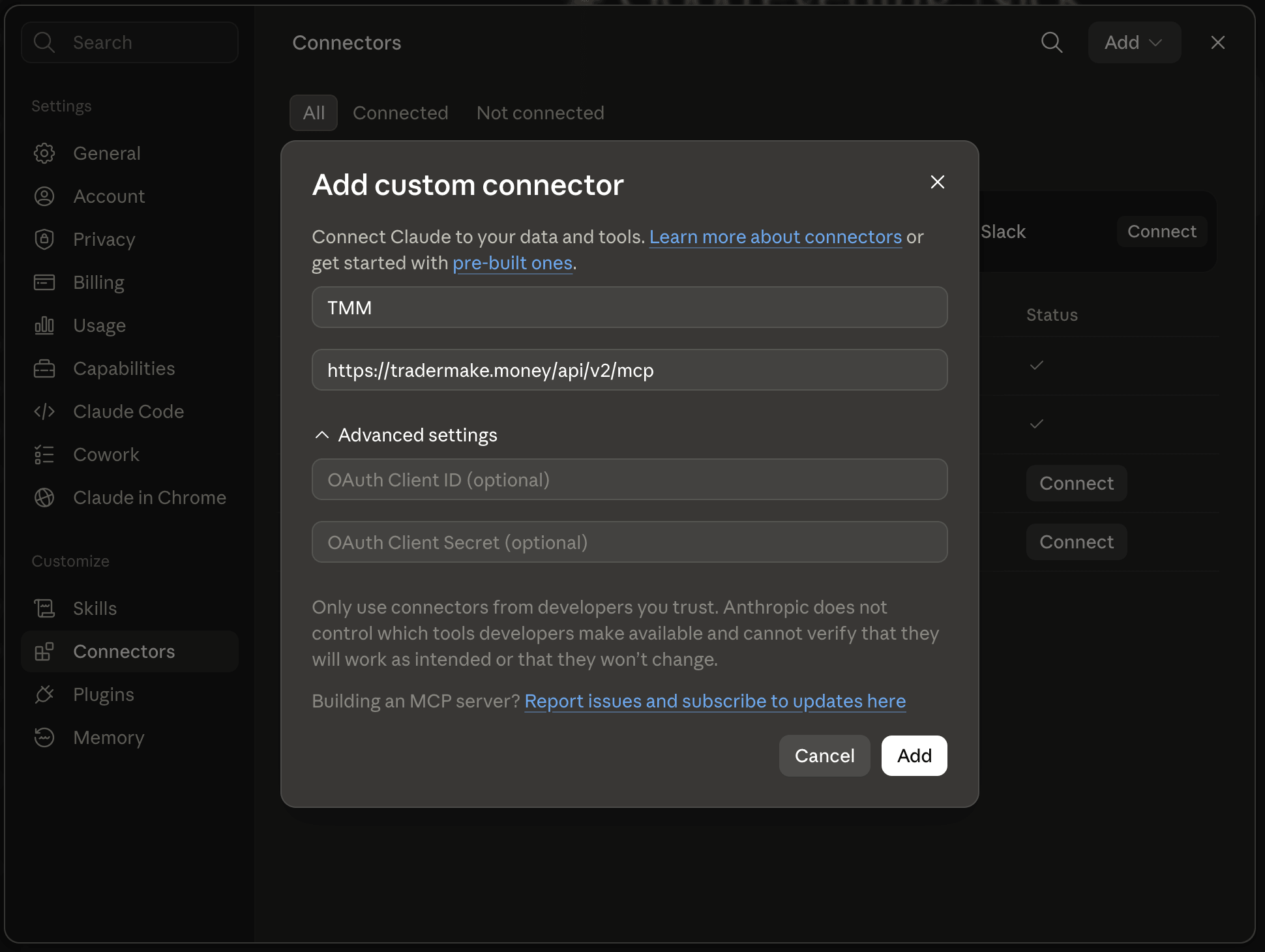
Name, address, then Add. The OAuth fields stay empty. - 3
Press Connect and sign in
The connector appears saying you are not connected yet. Press Connect and Claude opens TMM in your browser, where you sign in and approve exactly what Claude may read — your trading diary is a separate tick you can leave off.
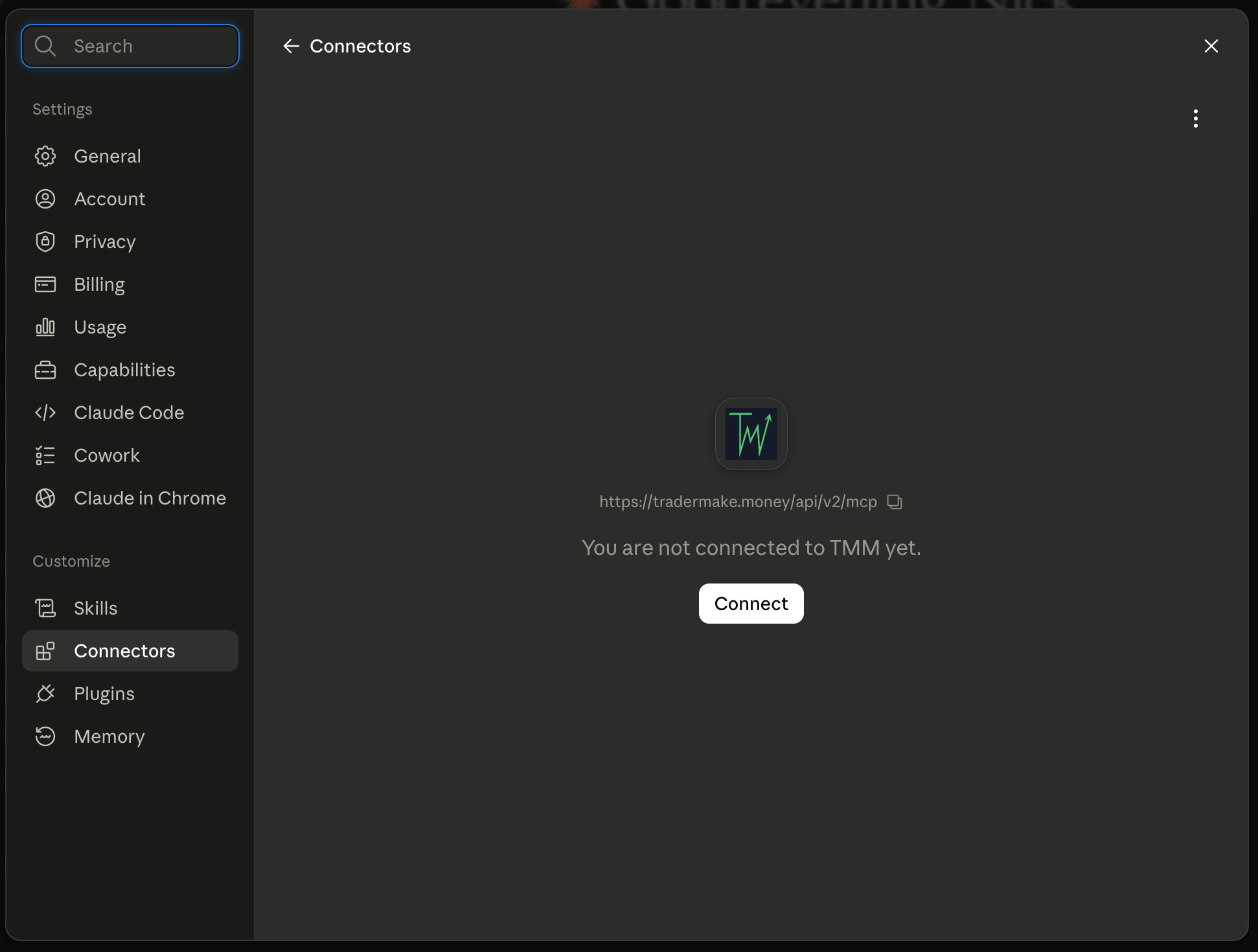
Connect → sign in to TMM → approve. - 4
Choose how freely it may read
Claude lists the read-only tools it received and lets you set them to Always allow, Needs approval or Blocked. Always allow keeps it from interrupting on every question, which is reasonable here because none of these tools can change anything.
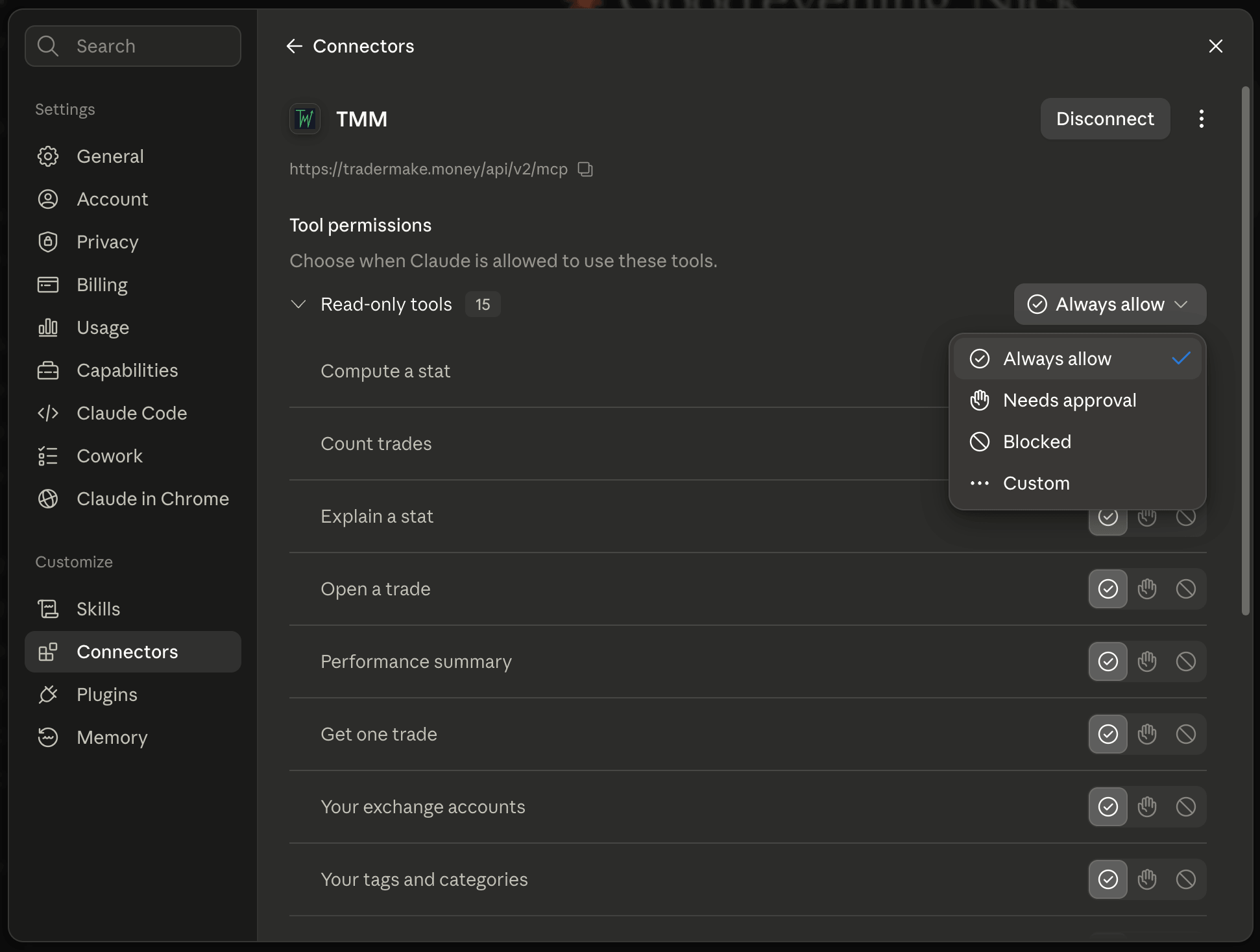
Tool permissions → Always allow.
Worth remembering
- The only thing you paste is the address — the OAuth Client ID and Secret fields stay empty.
- Claude lists every tool it received, so you can see exactly what it can reach.
- Your trading diary is a separate permission on the TMM approval screen; leave it off and Claude never sees your notes.
- You can disconnect at any time from TMM Settings, Connect your AI, or with Disconnect in Claude.
Questions
Do I need a paid Claude plan?
Custom connectors are available on the free plan as well as the paid ones, though free accounts are limited in how many they can add. The TMM side is free on every plan we offer.
Can Claude place trades or change my journal?
No. Every tool TMM exposes reads only. Nothing that could add, edit or delete anything in your journal is offered to it at all, so there is no permission you have to remember to switch off.
Does Claude see my exchange API keys?
No. Your keys never leave TMM. The connector can see an account's name, its exchange and a masked version of the public key — the same masked form the website shows you — and never the key itself or its secret.
What about Claude Code in the terminal?
Claude Code connects to the same address with one command and can also use a personal token, which is the right choice on a machine with no browser to open. The MCP page has the command.
How do I disconnect it?
Either side works. In TMM open Settings, Connect your AI, and revoke it under Connected apps — access stops on the next request. In Claude, press Disconnect on the TMM connector.
Give Claude your full trading history — free
Everything above needs a TMM account, and it costs nothing to open one. Connect an exchange with a read-only API key and TMM pulls in every fill you have ever made, then keeps the record current on its own. From there Claude can read the whole thing — trades, tags, notes and the numbers behind them — instead of the handful of screenshots you can paste into a chat.
Reading only, on both sides. Claude is never given anything that can place an order or change your journal.