
Що показує публічний профіль
Публічний профіль складається з трьох частин: біографія та посилання на соцмережі, власна дошка віджетів зі статистикою та необов’язкова історія угод. Ви вирішуєте, які API-ключі його наповнюють і скільки саме даних видно.
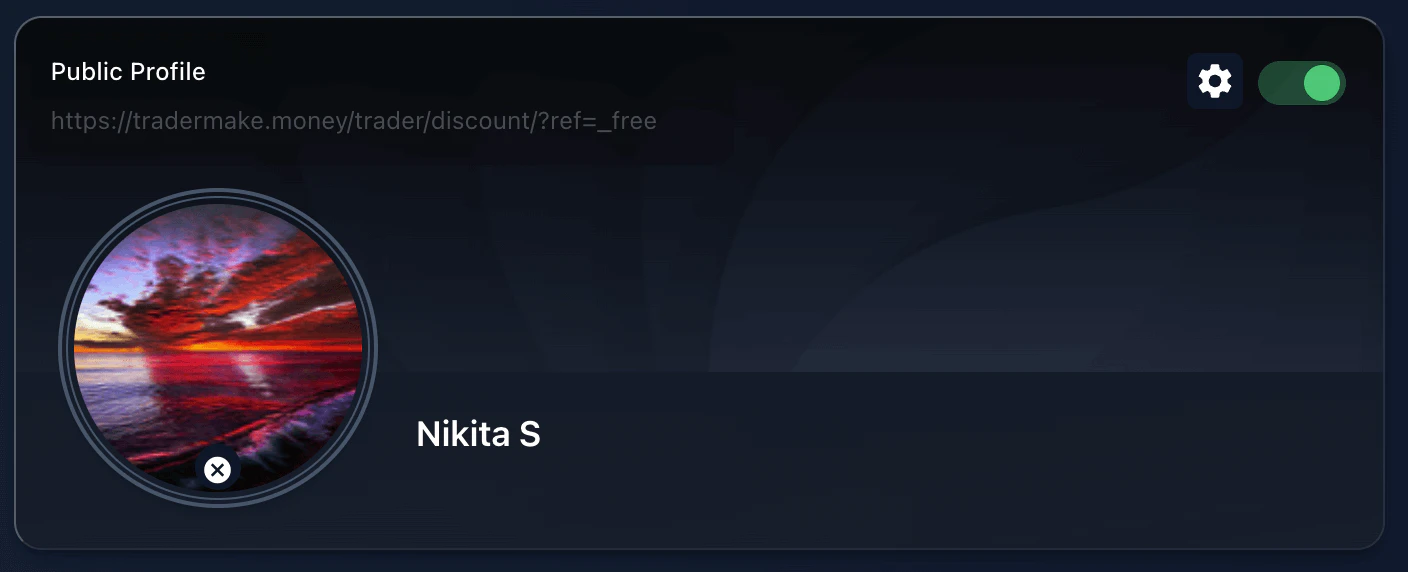
Увімкніть профіль у налаштуваннях; іконка шестерні відкриває розширену конфігурацію.
Settings → Public Profile block. Reused from _media/public-profile-v2/settings_block (Mar 2026); matches current UI.
Крок 1 — увімкніть профіль у налаштуваннях
Вмикайте та вимикайте профіль у блоці Публічний профіль на сторінці налаштувань. Натисніть іконку шестерні в цьому блоці, щоб відкрити розширену конфігурацію, де налаштовуються видимість і зовнішній вигляд.
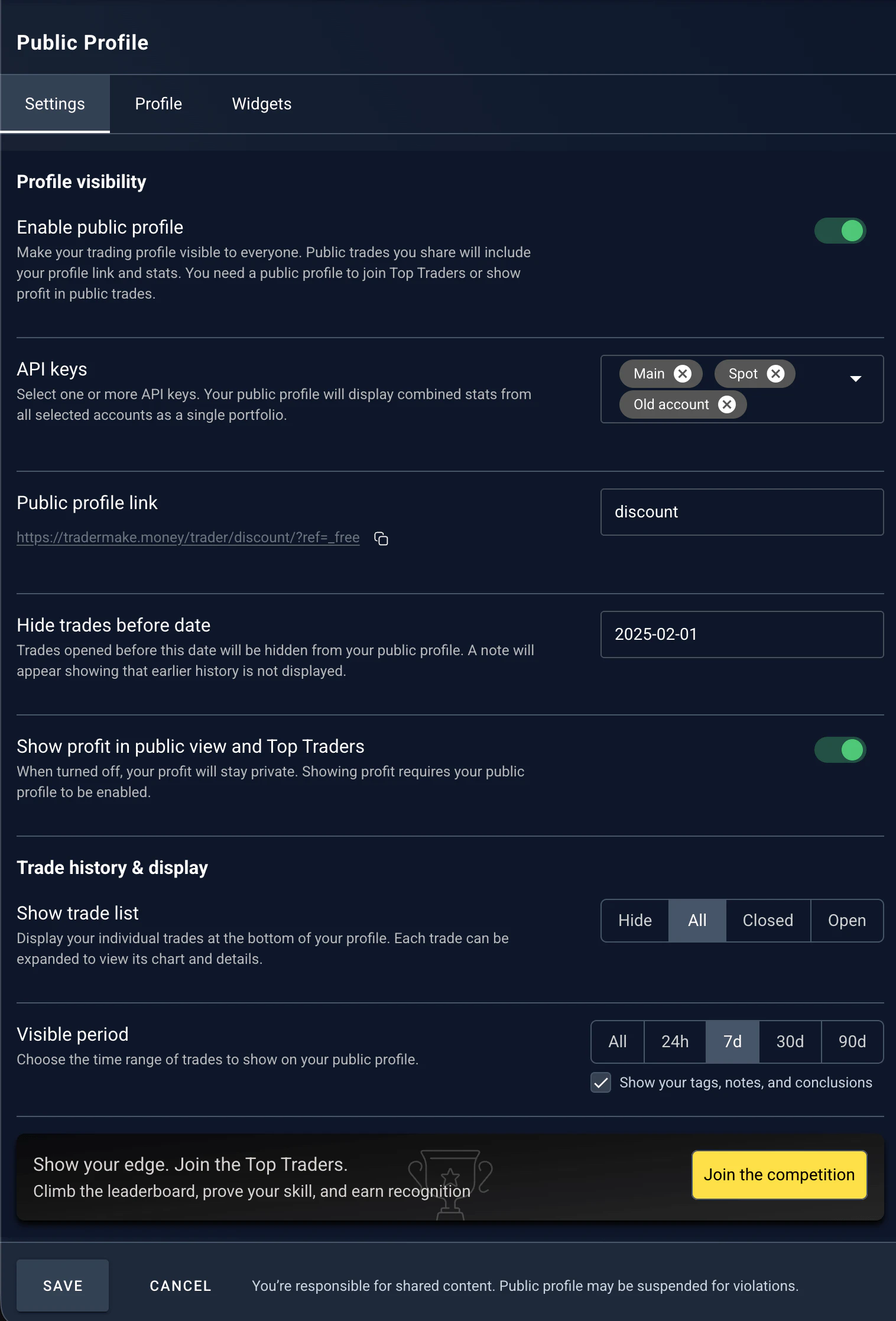
Крок 2: API-ключі, власне посилання, дата приховування історії, видимість прибутку та режим списку угод.
Public profile → Settings tab. Reused from _media/public-profile-v2/step1 (Mar 2026).
Крок 2 — задайте видимість і дані
На вкладці Налаштування в розширеній конфігурації ви задаєте правила для свого профілю:
- •API-ключі — оберіть акаунти, з яких формується публічна статистика.
- •Власне посилання — створіть унікальну URL-адресу профілю.
- •Приховати історію — вкажіть дату, з якої починається публічна історія. Раніші угоди приховуються, а на сторінці з’являється примітка про те, що ранішу історію не відображено.
- •Видимість прибутку — показувати абсолютний прибуток ($) або лишити його приватним (тільки відсотки).
- •Список угод — показувати всі угоди, лише закриті або повністю приховати список.
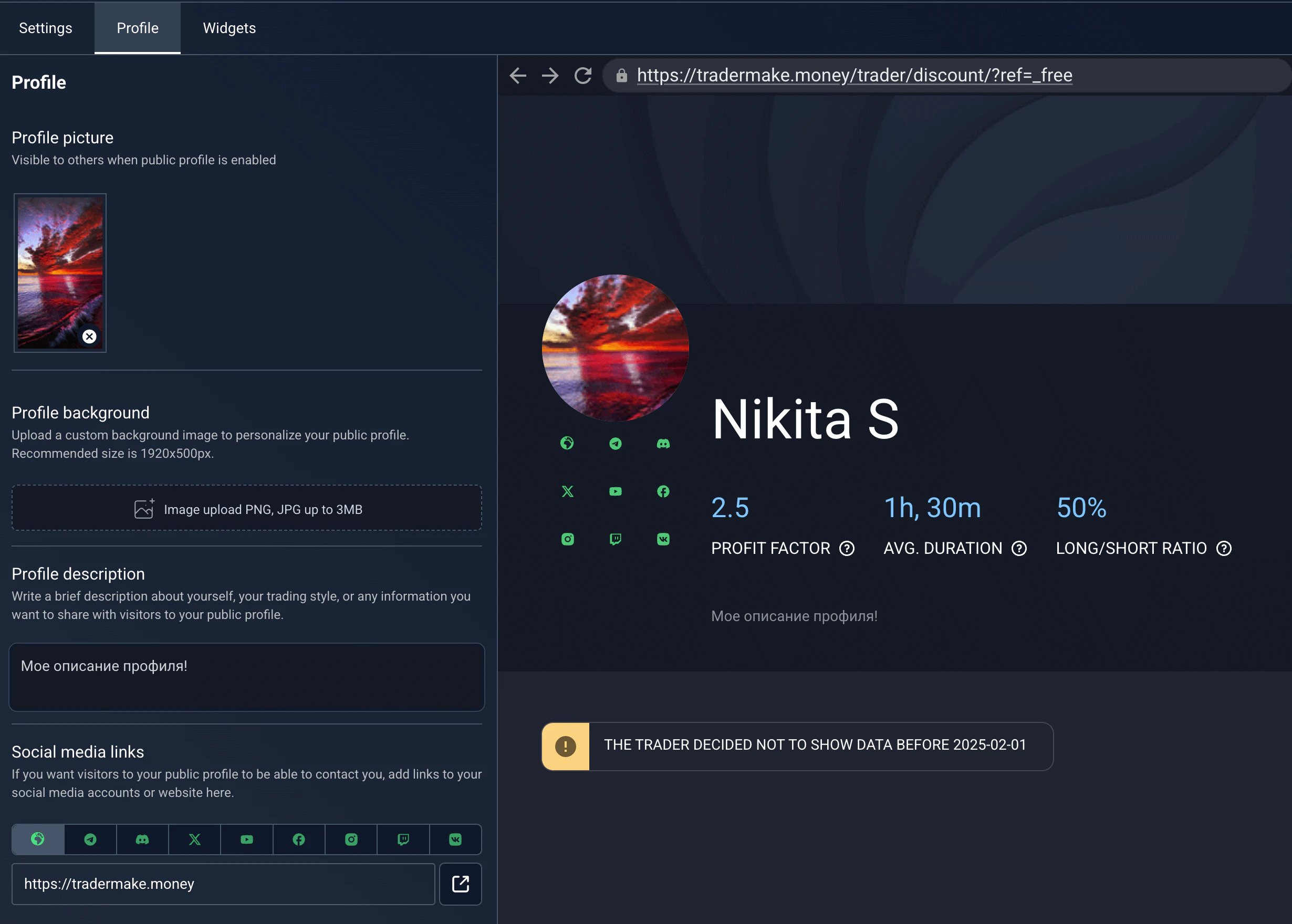
Крок 3: аватар, широке тло (1920×500), біографія та соцмережі з живим попереднім переглядом.
Public profile → Profile tab. Reused from _media/public-profile-v2/step2 (Mar 2026); 1920×500 matches PPPreview.vue max-w-[1920px] aspect-[3.84].
Крок 3 — оформте сторінку
На вкладці Профіль налаштуйте свій стиль: завантажте власний аватар і широке фонове зображення (рекомендований розмір 1920×500px), напишіть біографію та додайте посилання на соцмережі. Живий попередній перегляд одразу показує, як виглядатиме профіль.
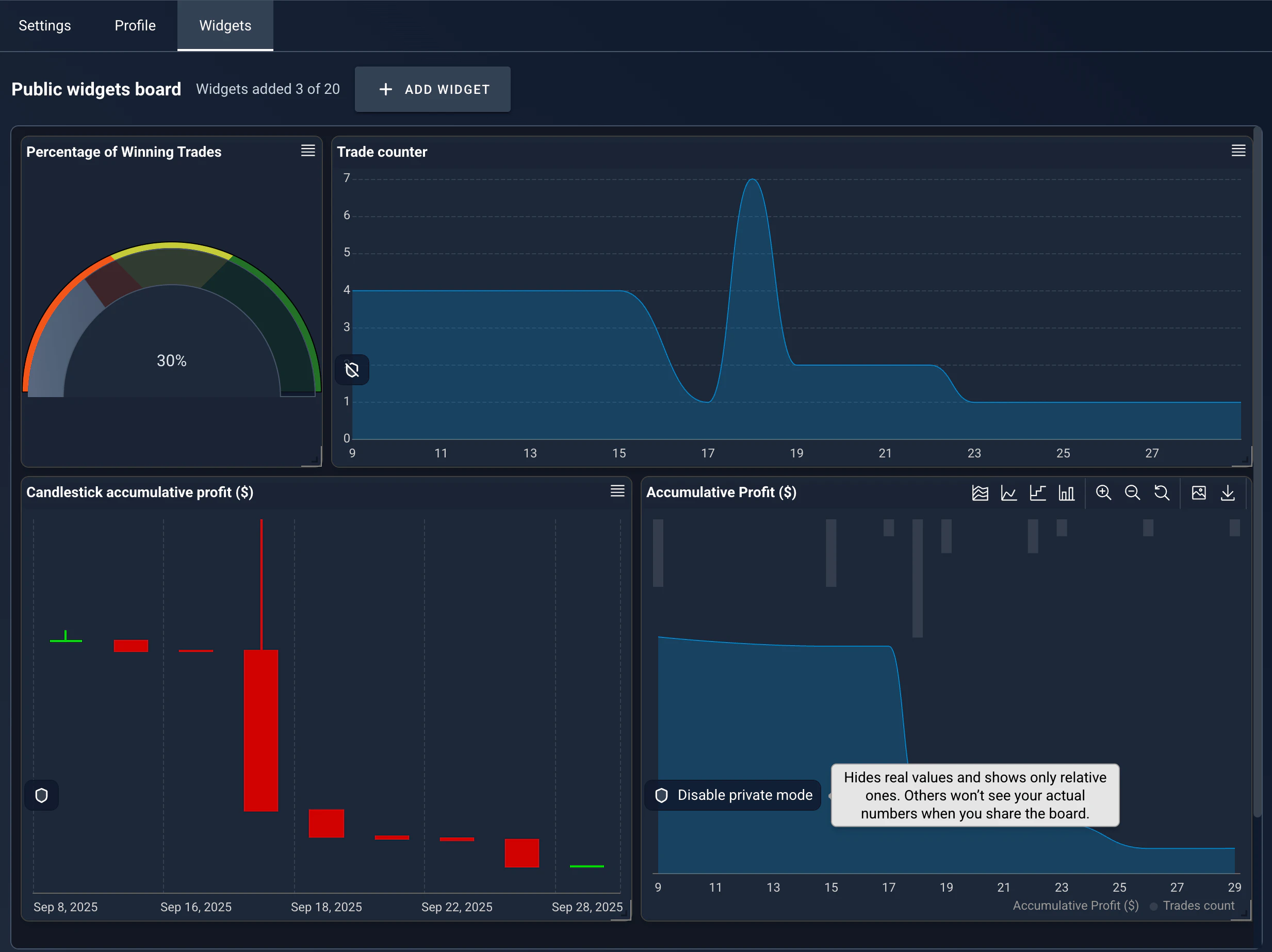
Крок 4: зберіть публічну дошку віджетів («Накопичений прибуток» обов’язковий).
Public profile → widgets board. Reused from _media/public-profile-v2/step3 (Mar 2026).
Крок 4 — зберіть публічні віджети
Як і в розділі «Зведення», ви збираєте дошку віджетів для відвідувачів. Віджети додаються з великого каталогу, а для чутливих даних можна ввімкнути приватний режим — тоді замість точних чисел показуються відносні тренди.
Один віджет є обов’язковим: віджет Накопичений прибуток прибрати не можна. Він дає відвідувачам побачити загальний тренд і стабільність трейдера, що унеможливлює показ оманливих, вибіркових результатів.
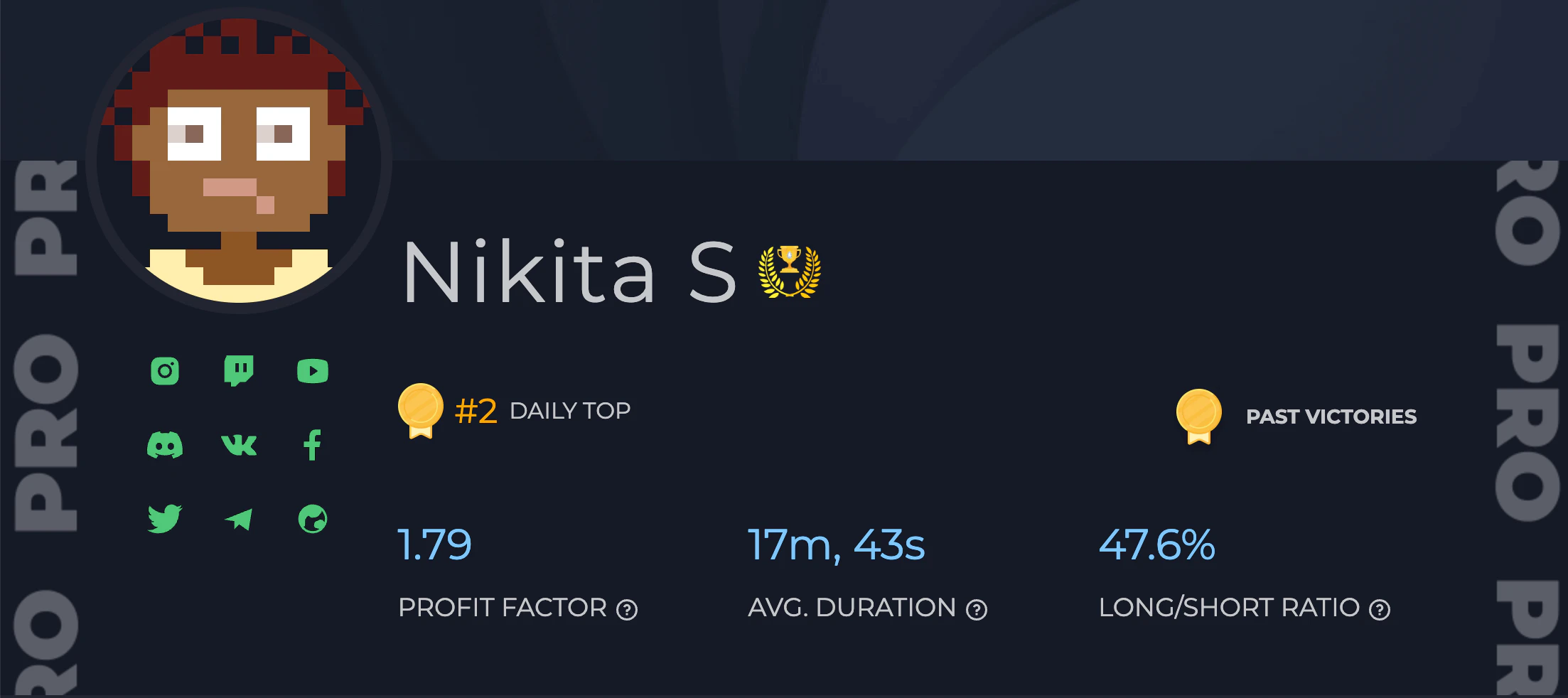
Учасники ліги PRO отримують ексклюзивне тло профілю.
PRO League profile background. Reused from _media/public-profile/pro.png (Dec 2023) — FLAGGED for recapture; cosmetic, no UI labels.
Участь у Топ трейдерів і лізі PRO
Щоб потрапити до рейтингу Топ трейдерів, увімкніть перемикач «Top Traders» і оберіть один API-ключ, який вас представлятиме.
Трейдери, які досягають статусу ліги PRO (механіка з 3 балами щотижня), отримують ексклюзивне тло профілю, яке неможливо отримати через звичайне оформлення.
Приватність і прозорість
Ви не можете приховати чи вибірково відсіяти окремі угоди в межах обраного періоду — саме це тримає кожен профіль чесним. Якщо хочете почати з чистого аркуша, скористайтеся опцією Приховати угоди до дати й перезапустіть публічну криву капіталу від сьогодні.
Публічні віджети не підтримують власні фільтри (на відміну від приватного «Зведення»), тож показані дані є справжнім відображенням обраних ключів. Архівування угод у щоденнику не впливає на публічний профіль — він читає дані з біржі через ваші API-ключі.
Зверніть увагу: образливий контент або оманливі зображення можуть призвести до довічного блокування вашого публічного профілю.